
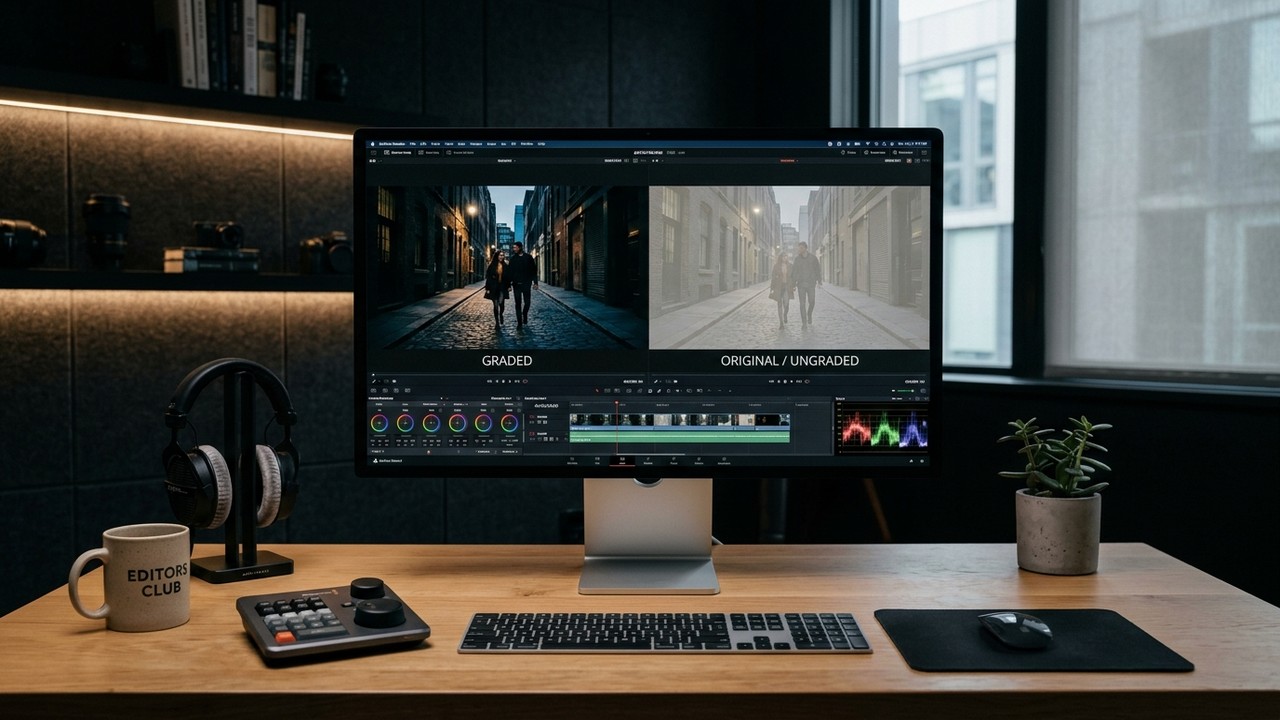
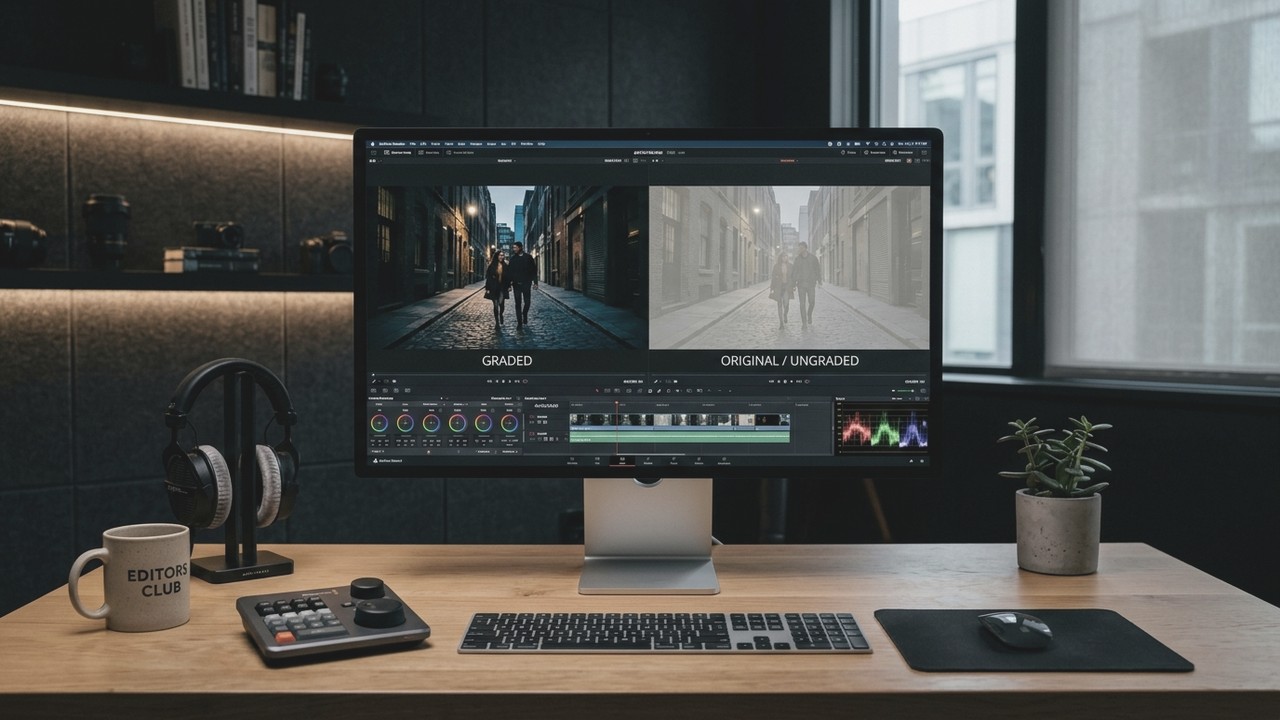
The Infamous QuickTime Gamma Shift Explained
You spend 12 hours grading a project on your calibrated monitor in DaVinci Resolve or Premiere Pro. The contrast is deep, shadows are punchy, and colors are rich. You hit export (H.264 / MP4), double-click the file to preview it in QuickTime Player, and suddenly your heart sinks: the image looks faded, milky, and washed out, like a thin layer of grey fog was placed over the entire video.
This is not your imagination, and your computer monitor isn't broken. This is the notorious Apple ColorSync Gamma Shift, a color management mismatch between broadcast video gamma (2.4) and Apple's display management engine (1.96).
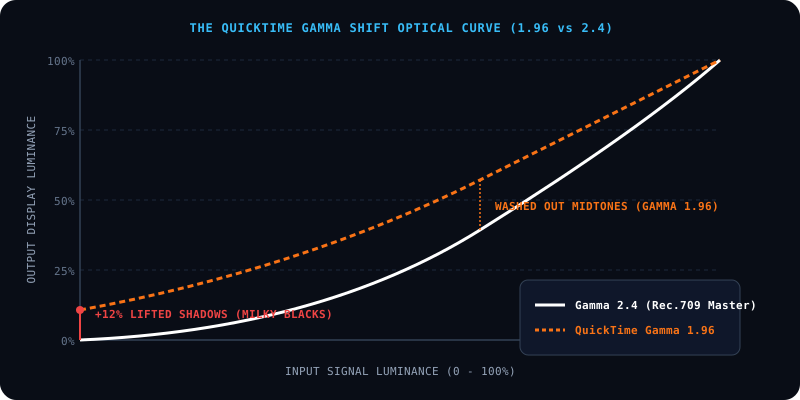
Figure 2: The transfer curve comparison. Broadcast Rec.709 masters at Gamma 2.4 (solid white line). QuickTime and Safari decode untagged files at Gamma 1.96 (orange dashed line), elevating the shadow floor by +12% and compressing contrast.
Gamma 2.4 vs Gamma 1.96: Why It Happens
Broadcast Rec.709 standard specifies a gamma curve of 2.4 (intended for dim mastering environments). However, Apple devices (MacBook screens, iMacs, Studio Displays, iPhones) running macOS and iOS assume web content viewed under ambient daylight uses sRGB / Gamma 1.96. When QuickTime Player or Safari decodes a video lacking specific color tags, it renders the video at gamma 1.96, lifting shadow luminance by roughly +12% and draining color saturation.
How to Permanently Fix It in DaVinci Resolve
In DaVinci Resolve: Go to Project Settings > Color Management > Timeline Color Space. Set Output Color Space to Rec.709-A ('A' stands for Apple). This injects the exact NCLC color tags (1-1-1) into your QuickTime MOV/MP4 header, forcing QuickTime, Safari, and YouTube to render contrast and saturation identically to your DaVinci viewer!
How to Fix It in Adobe Premiere Pro
In Premiere Pro 2024+: Go to Preferences > General > Enable 'Color Management for Displays'. On Export, in the Video tab, ensure 'Color Primaries' and 'Transfer Characteristics' are set to Rec.709, or apply the official Adobe Gamma Compensation LUT on the export panel.
Download Broadcast & Web Calibration LUTs
Get precision calibrated conversion LUTs for YouTube, Vimeo, and mobile displays with correct NCLC color tagging.