
How to Color Grade Log in CapCut (PC & Mobile)
Step-by-step masterclass on importing 3D LUTs (.CUBE), converting Apple Log, Sony S-Log, and DJI D-Log M into Rec.709, and styling cinematic videos directly inside CapCut.
Apple Log to Rec.709 (33x)
Lightweight 33³ table optimized for fast CapCut mobile playback.
D-Log M to Rec.709 Official
Converts Pocket 3 & Action 4 10-bit footage to rich, natural color.
Sony S-Log3 to Rec.709
Instant Hollywood skin tones and contrast for FX3 and A7IV clips.
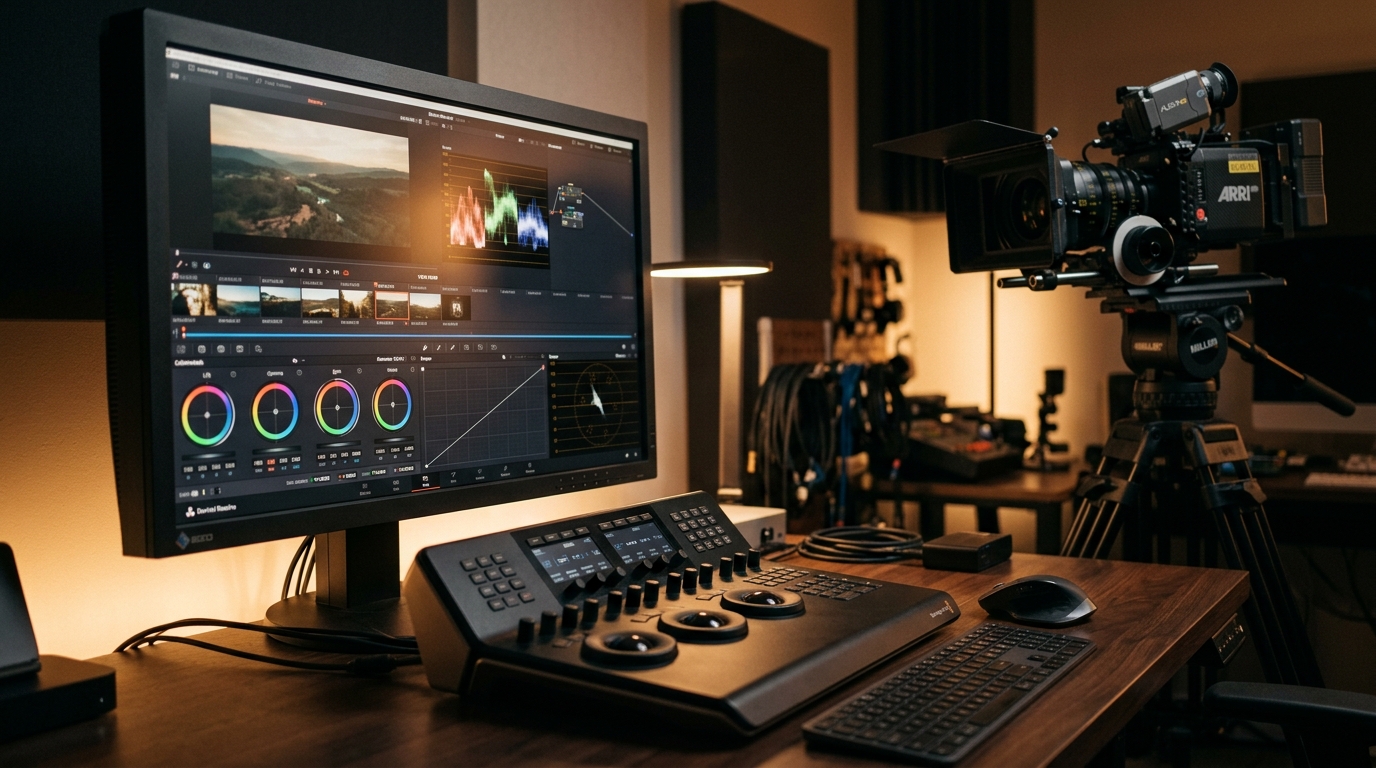
CapCut Adjustment Layers & Tetrahedral 33³ 3D LUT Color Engine
How to Install & Apply LUTs in CapCut Desktop
Drag your flat iPhone ProRes Log, Sony S-Log3, or DJI D-Log M footage onto track V1 of your timeline.
Click Adjustment in the top menu and drag an Adjustment Layer onto track V2 above your clip. This lets you grade multiple cuts at once.
In the upper-right inspector panel, under the Adjustment tab, scroll down to the LUT section and check the checkbox.
Click Add Local LUT, select the downloaded .cube file, and set the Strength slider to 100%. The flat image is instantly normalized.
Using LUTs in CapCut Mobile (iPhone & Android)
In recent updates of CapCut Mobile, you can import external .cube LUTs directly: